Ethernet Direct Mode
FlexKVM becomes a DHCP server — connect a computer directly with a single Ethernet cable, and the computer automatically gets an IP to access the management interface. No router needed, no dependency on on-site network. Long-press Button B for 1–3 seconds to toggle on.
In Direct Mode, the device assigns IPs in the range
192.168.x.2 ~ 192.168.x.254to the connected computer (xdefaults to 100, i.e., default subnet192.168.100.x). The subnet segmentxis configurable and defaults to 100.
Specifications
| Item | Details |
|---|---|
| Mode | DHCP server (device side) |
| Interface | RJ-45 Ethernet port |
| Default subnet | 192.168.100.x |
| Device IP | 192.168.x.1 (gateway + DHCP server) |
| Client IP range | 192.168.x.2 ~ 192.168.x.254 |
| Client count | 1 (direct connection to a single computer) |
| Default state | Off |
Typical Scenarios
🖥️ Direct Connection to Laptop
No router on site? No network? One cable to your laptop, and you can still manage the server remotely:
┌──────────┐    Ethernet direct    ┌──────────────┐
│ FlexKVM  │ ←──────────────────→ │    Laptop     │
│ DHCP server│                      │ Auto IP from │
│192.168.100.1│                     │192.168.100.x │
└──────────┘                        └──────────────┘
Combined with WiFi AP Mode, you get wired direct + WiFi hotspot dual insurance — connect via laptop on Ethernet or phone on WiFi, either way works without a router.
OLED Display
When Direct Mode is active, the OLED network icon switches to the direct-mode icon, and the IP prefix becomes S (e.g., S192.168.100.1), S = Server.

Direct Mode and normal Ethernet mode share the same physical port — the OLED icon differs to distinguish the current mode.
Button Toggle
Long-press Button B has three stages. Release at the first stage (1–3s) to toggle Direct Mode:
| Current mode | Action | Result | OLED preview | Wait time |
|---|---|---|---|---|
| Ethernet client | Hold B 1–3s, release when OLED shows "ETH SERVER" | DHCP client off, Direct Mode on | ETH SERVER text | ~5s |
| Direct Mode | Hold B 1–3s, release when OLED shows "ETH CLIENT" | Direct Mode off, DHCP client restored | ETH CLIENT text | ~5s |
Keeping the button held: 3–5s enters WiFi/hotspot toggle preview, 5s+ enters return-to-home preview. See Physical Buttons.
Software Configuration
Go to Web interface → Settings → Network → click the gear icon on the Ethernet card → Direct Mode tab.
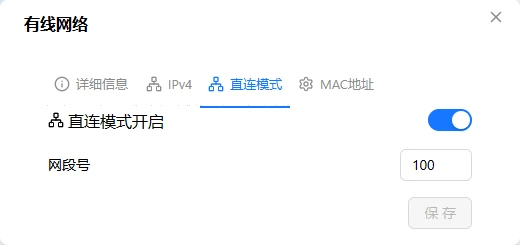
Enable / Disable
Toggle "Direct Mode" on, set the subnet segment (0–254), and click save — takes effect immediately.
| Setting | Description | Default | Range |
|---|---|---|---|
| Direct Mode | Toggle switch | Off | — |
| Subnet segment | Third octet of IP (x in 192.168.x.1) | 100 | 0–254 |
If you can't connect after changing the subnet segment, normal Ethernet mode will attempt to restore DHCP automatically. Remember to refresh the IP on your computer. If still unable to connect, use Provisioning Mode (long-press Button A 1–3s) to recover.
Verification
| Check | How |
|---|---|
| OLED | Does the IP start with S? |
| Web interface | Does the Ethernet card show "Direct Mode: IP"? |
| Client | Set the computer's Ethernet to DHCP auto — does it get a 192.168.x.x IP? |
Troubleshooting
| Symptom | Likely cause | Try this first |
|---|---|---|
| Computer gets no IP | Cable loose, or Ethernet not set to DHCP | Re-plug the cable, check computer network settings |
| Got an IP but not 192.168.x.x | Computer may be connected to another network | Turn off computer WiFi, keep only wired |
| Can ping but page won't load | Browser cache or proxy | Clear cache, disable proxy, try incognito mode |
| Can't connect after changing subnet segment | Computer still holds old IP | Disable then re-enable Ethernet on computer, or ipconfig /release && /renew |
| Switching between Direct Mode and normal Ethernet keeps failing | Stale route table entries | Wait ~10s for auto-recovery, or reboot the device |